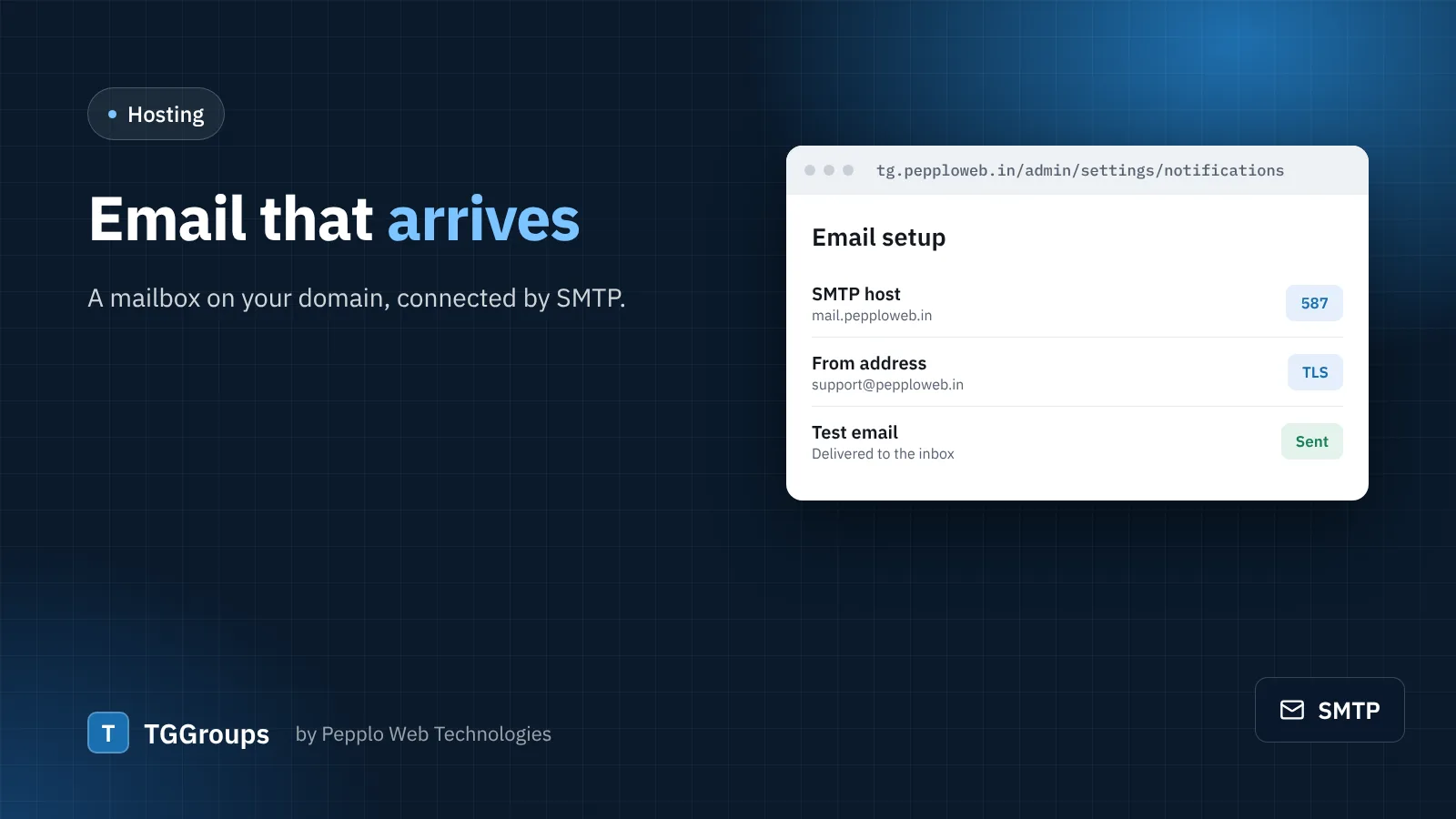
TGGroups sends emails when a link is approved or rejected, when someone resets a password and for two-step codes. After installation mail is set to "Log file only", so nothing is sent until you connect a mailbox.
1. Create a mailbox on your domain
An address like support@yourdomain looks trustworthy and is less likely to be filtered than a free webmail address. Create it in your hosting control panel — most cPanel hosting plans, such as those from DOMAINSROCK, let you create mailboxes on your domain.
2. Connect it in TGGroups
- Open Settings › Notification settings › Email setup.
- Choose SMTP and enter the host, port (usually 465 with SSL or 587 with TLS), the full email address as username and its password.
- Set the From address and name, save, and open the Test email tab.
3. Help your emails reach the inbox
- Make sure SPF and DKIM records exist for your domain — most hosts add them automatically.
- Use the same domain in the From address as the mailbox you send from.
- Keep templates short and personal; edit them under Email templates.
Check the delivery log
Every attempt is listed in the Delivery log tab with its status, so you can see at once whether a member's email was sent.
0 comments